
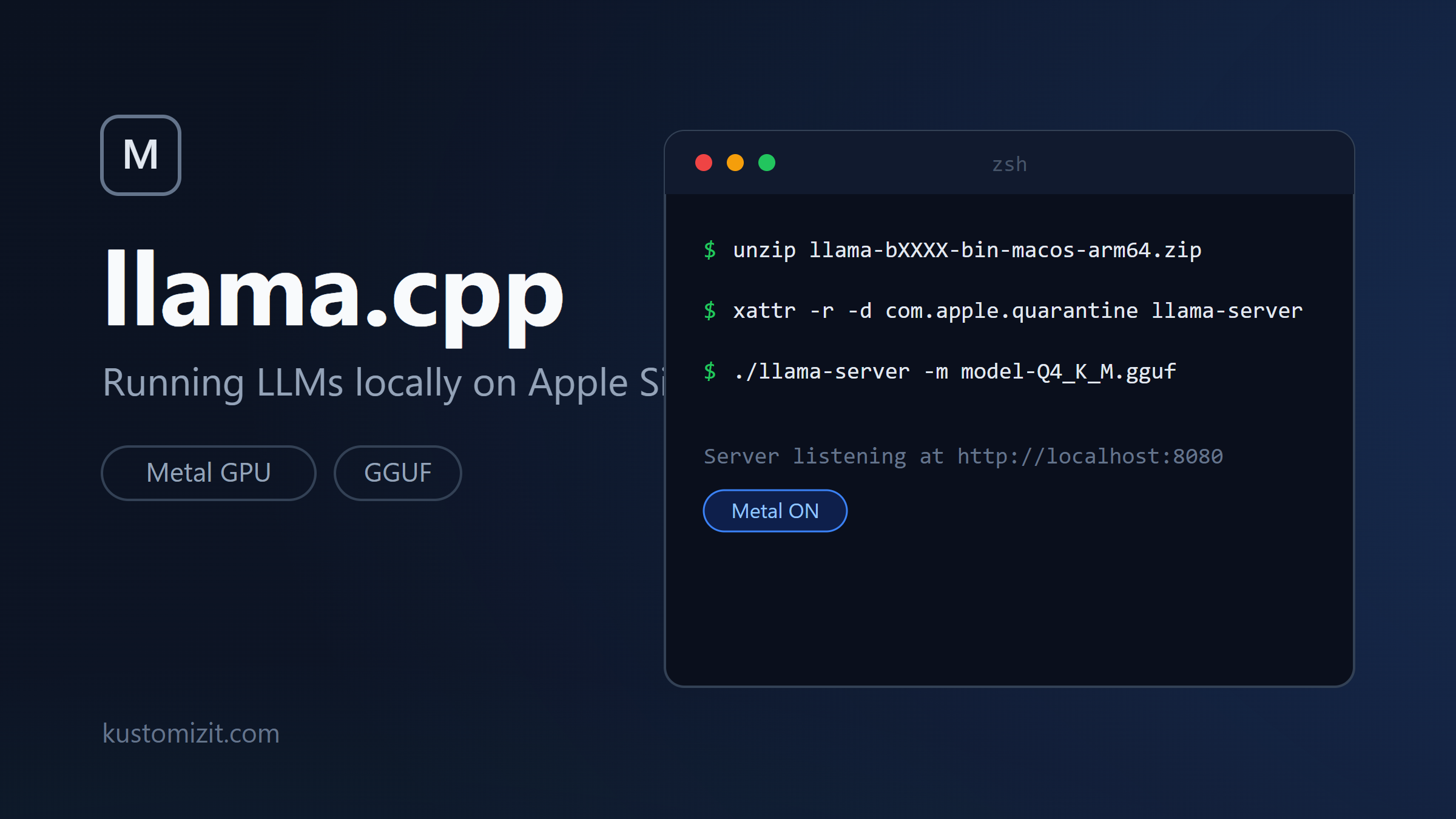
llama.cpp is a lightweight C/C++ port of LLM inference that runs great on Apple Silicon, using the GPU through Metal. Here is the fastest way to get a local model running on an ARM Mac.
1. Download the latest release
Head over to the llama.cpp releases page on GitHub and download the latest build for your Mac. For Apple Silicon (M1/M2/M3/M4) grab the macos-arm64 zip asset, e.g. llama-bXXXX-bin-macos-arm64.zip.
2. Extract the archive
Double-click the zip, or unzip it from the terminal:
unzip llama-bXXXX-bin-macos-arm64.zipThis gives you a folder with the prebuilt binaries, including llama-server. Work inside that folder for the next steps.
3. Download a GGUF model from Hugging Face
llama.cpp needs a model in GGUF format. Browse GGUF models on Hugging Face and pick one that fits in your RAM. For a Mac with 16 GB of unified memory a 7-8B model at Q4_K_M quantization is a good starting point. Download the .gguf file somewhere handy, e.g. into a models folder.
4. Remove the quarantine flag
macOS quarantines anything downloaded from the internet, so the binary would be blocked on first run. Remove the quarantine attribute with:
xattr -r -d com.apple.quarantine llama-server
xattr -r -d com.apple.quarantine *.dylib
The -r flag applies it recursively, in case you want to clear it for the whole extracted folder.
5. Run llama-server
Start the server pointing at your model:
./llama-server -m models/your-model-Q4_K_M.gguf -np 1 -c 32000It listens on http://localhost:8080 by default. Open that in your browser for the built-in web UI, or point any OpenAI-compatible client at http://localhost:8080/v1. On Apple Silicon, Metal acceleration is enabled automatically, so the model will run on your GPU. Use --port to change the port or -ngl 99 to make sure all layers are offloaded to the GPU.


Pingback: Run Qwen3.8-27B in 8-12 GB With GSQ-RCO Non-Uniform GGUF Quantizations - Kustomiz-it